 Christian Beatty
A new client signs. On the onboarding call, the client gives you the logins for the website, the web host, and the Google Business Profile. Somebody types them into a task, a note, or a Slack message. Six months later, the same password is in four places. Nobody knows who saw it.
"Passwords live in notes, spreadsheets and chat threads."
Many agency owners say this. The logins work, so the problem is not visible. But each copy of a password is one more place where a person can find it. You do not control these places.
This post describes the Logins tab that I built for a local SEO agency with approximately 85 clients. It shows how the system keeps a password hidden, records each look, and helps the team remove access when a client leaves. It also shows the steps that you can do this week with a password manager and no custom software.
What can go wrong
The risk is not theory. These are three usual cases.
A contractor leaves
A freelance designer worked on 20 client websites. The designer received the WordPress logins in Slack. The contract ends, and you remove the designer from Slack. But the designer still has the passwords in a browser or in a personal note. The passwords still work, because nobody changed them.
Can you make a list of the logins that this person saw? Without a record, you cannot.
A client leaves
A client cancels. Your team still has access to the website, the web host, the ad account, and the Google Business Profile. Some of these logins are with people who do not work for you now. If the client website changes after the client leaves, the client can ask if your agency did it. You must be able to show that you removed your access.
A laptop is lost
An account manager loses a laptop at an airport. The laptop has a spreadsheet with the logins of 40 clients. It also has Slack, and Slack stays signed in. Now you must decide which passwords to change. Without one list of all logins, you change some and forget others.
In each case, you must answer three questions. Which logins exist? Where are they? Who saw them? When the passwords are in many places, you cannot answer these questions.
Why it happens
Nobody decides to keep passwords in Slack. It occurs because chat is the fastest way to send a password at that moment.
The client sends logins in an email or on a call. The fastest place to put them is the task or the chat.
A team member asks for a login at 6 PM. Another team member copies it into a direct message.
The password manager is not connected to the client record. Because of this, people do not use it.
No person has the job to remove access when a client or a team member leaves.
At this agency, the onboarding SOP had a step with the name "store logins safely". Before the new system, the logins were in plain text in the project management tool. The team did care. But the safe place was not where the work occurred.
The system: a Logins tab on each client record
In the platform that I built, each client has one record with tabs, for example overview, deliverables, communications, and logins. The logins are on the client record, next to the work. A team member who works on a client opens the client and finds the login there. Nobody must ask for a password in Slack.
What the team sees
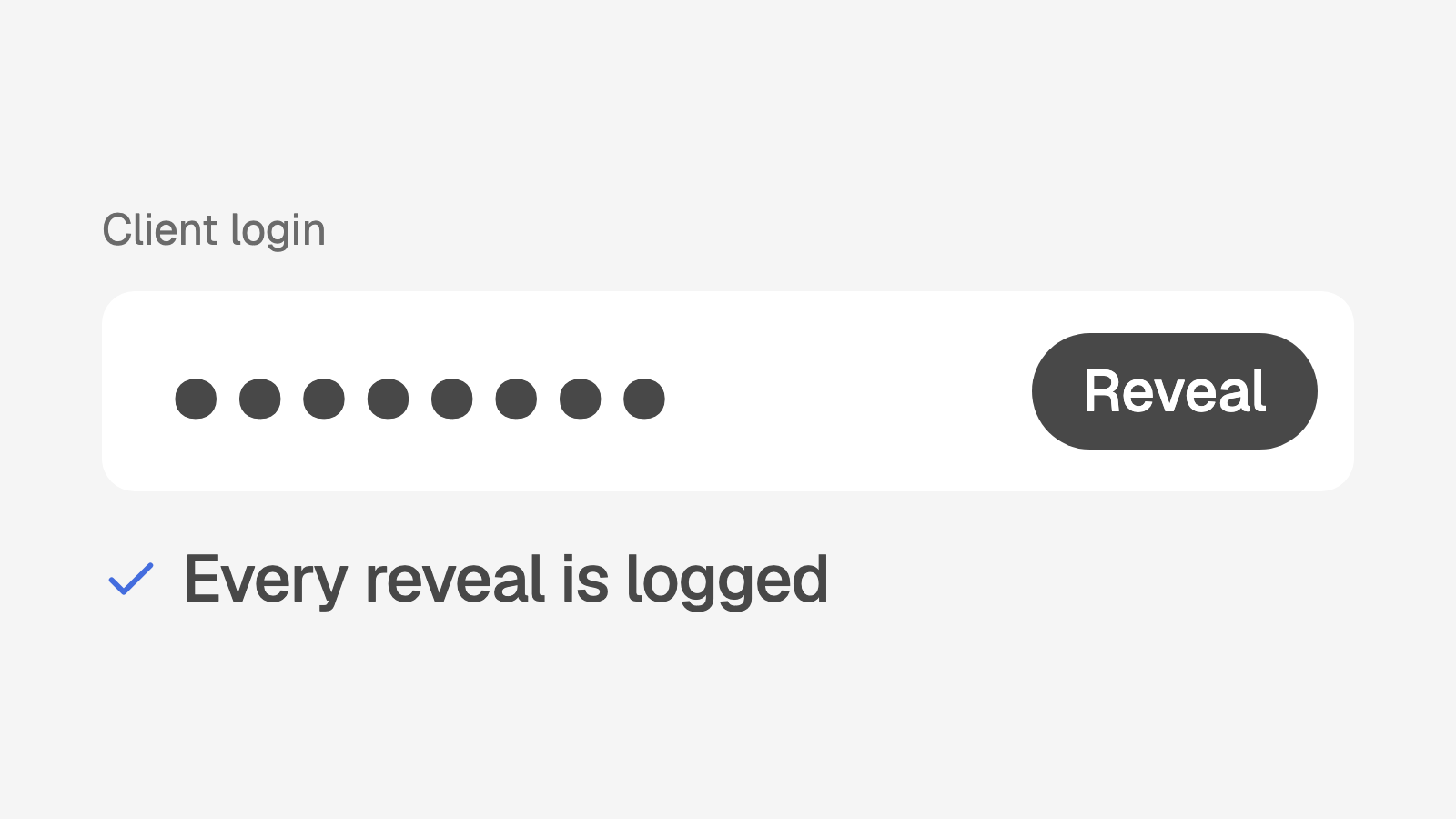
Each login has a platform, a login URL, a username, and an optional note. The password is hidden by default. The screen shows dots, not the password.
To use a login, a team member does these steps:
Open the client.
Open the Logins tab.
Click Reveal next to the login.
Click Copy, or read the password.
Click Hide.
If the team member forgets step 5, the system hides the password again after 30 seconds.
How the system stores the password
The system does not keep the password in the table of logins. When an owner saves a login, the password goes into an encrypted store in the database. The table of logins keeps only a reference to the encrypted value. All client passwords of the agency live in this encrypted vault.
Only owners can add a login or delete a login. When an owner deletes a login, the system also deletes the encrypted password. There is no edit function. To change a password, an owner deletes the old login and adds a new login.
Who can see what
Each login has an access list. Only the people who work on a client can reveal the passwords of that client. A person who is not on the team cannot see the list of logins. If a person without access tries to reveal a password, the system stops the attempt and records it.
The reveal log
Each time that a person clicks Reveal, the system records who and when. It also records when an owner adds a login, and each blocked attempt. Only owners can read this log. A database rule (row level security) controls this, not only the screen.
On the Logins tab, owners see the newest entries under "Who has viewed these". This is an example:
Sample Dental: who has viewed these
Sam revealed the WordPress password, today at 9:42
Alex revealed the Google Business Profile password, yesterday
Jordan created the web host password, 3 weeks ago
This is a sample client. The names in this example are not real.
The team knows that the log exists. The help page has a caution. It tells each person to reveal a password only when they must use it. Because of this, people reveal passwords less often. And the owner can see which logins a person used.
Offboarding: remove access when a client leaves
When a client leaves, an owner changes the status of the client to past. The owner can select two options: cancel the open work, and create the offboarding checklist. The checklist has five tasks. Each task has a due date, counted from the day that the client left:
Offboarding task | Due |
|---|---|
Confirm the cancellation with the client and record the reason | 2 days |
Stop the monthly billing and confirm the final invoice | 3 days |
Revoke access to the CRM, web host, and other accounts | 3 days |
Change and remove the stored passwords | 5 days |
Export the final reports and hand over the files and the website | 7 days |
The system assigns each task to the owner. The tasks stay open until a person completes them.
The Logins tab of a past client stays visible. It shows a callout: this client has left, revoke our access, and delete these logins. The logins are still there, so the team can see which accounts to remove. When the work is complete, an owner deletes each login. The system deletes the encrypted password at the same time.
The system does not change passwords on the platforms of the client. A person must do that. The system creates a task with a due date, so the team does not forget it.
A password manager is a good first step
You can fix most of this problem without custom software. A password manager with shared vaults is a good first step. 1Password and Bitwarden both have shared vaults for teams.
Make one vault for each client. Give access to a vault only to the people who work on that client. This gives you access control for each client.
But a password manager does not know your client records. The custom system adds three things:
Item | Password manager | Custom system |
|---|---|---|
Where the login is | In a separate app | On the client record, next to the work |
Who looked | In the admin reports of the password manager | In the reveal log, on the client record |
When a client leaves | A person must remember | The offboarding checklist starts with the status change |
Both options are much better than a password in a chat thread. Do not keep a password in plain text anywhere. That includes Slack, tasks, spreadsheets, notes, and email.
Start this week
These steps do not require custom software. First, set up the vaults:
Select one password manager with shared vaults, for example 1Password or Bitwarden.
Make one shared vault for each active client.
Give access to each vault only to the people who work on that client.
Search Slack, email, and your task tool for the words "password" and "login".
Make a list of each password that you find, with the client and the platform.
WARNING: Change each password from a chat or a task before you put it in the vault. Somebody possibly copied the old password.
Then, for each password on your list, do these steps:
Sign in to the platform with the old password.
Change the password.
Save the new password in the vault of the client.
Delete the old message, note, or spreadsheet row.
Last, write the offboarding checklist:
Write a checklist for the day that a client leaves.
Add the task "Revoke access to the CRM, web host, and other accounts".
Add the task "Change and remove the stored passwords".
Give each task one person and a due date.
Write a second checklist for the day that a team member leaves.
When a password lives in one place, you can answer the three questions. You know which logins exist, where they are, and who has access.
How does your agency score?
Data security, which includes client logins and access control, is one of eight areas in the free agency systems quiz. The quiz has 14 questions and takes 5 minutes. You receive a score out of 100 and your three largest gaps.
Take the 5 minute quiz. Or book a call, and I will show you how a system like this can work in your agency.