 Christian Beatty
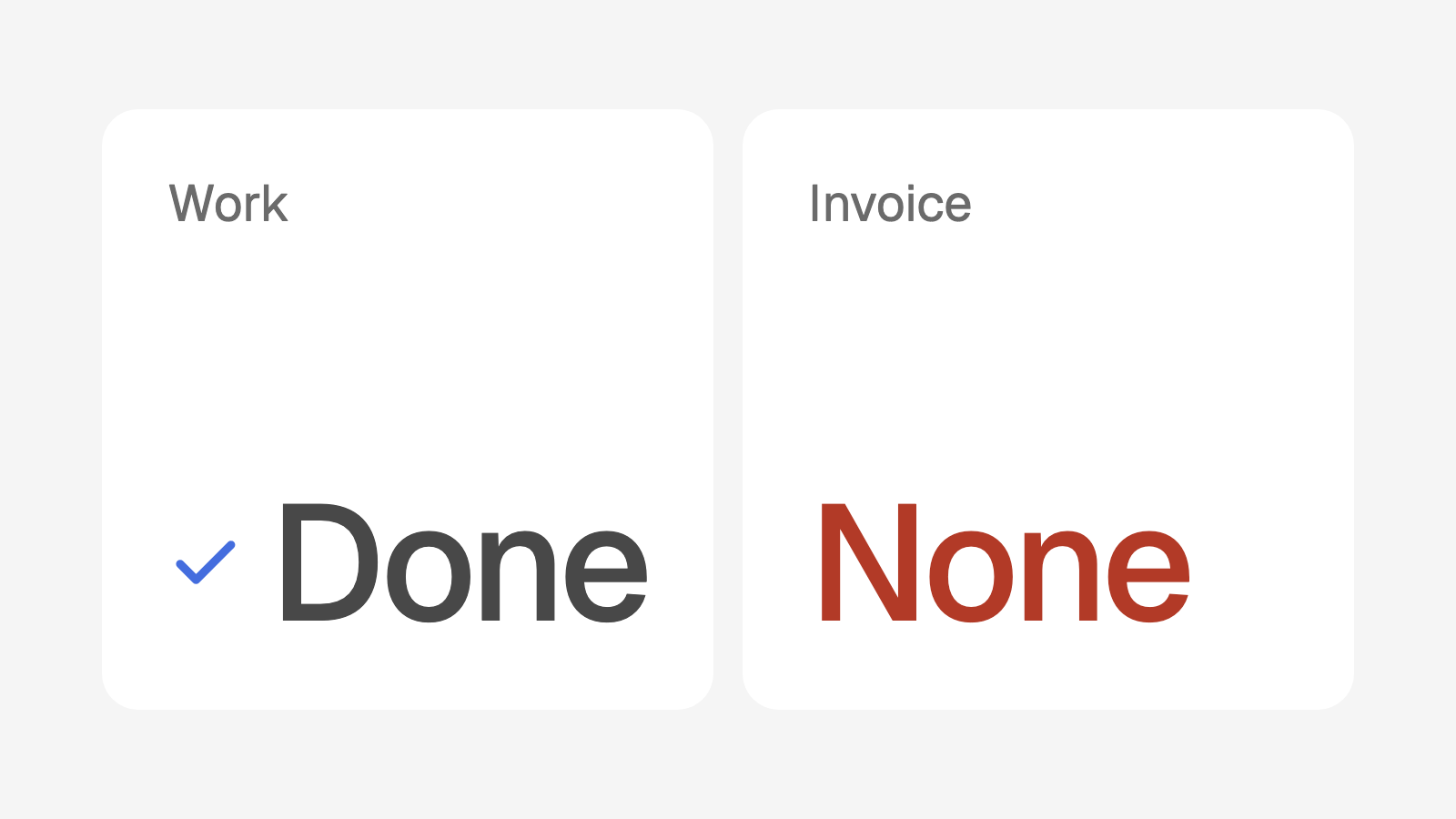
The team does the work for a client each month. The reports go out. The client is happy. But nobody sent an invoice for three months, and nobody saw it.
Many agency owners ask the same question: "We do the work. Are we paid for all of it?" Most owners cannot answer it fast. Nobody compares the client list with the billing tool.
This post shows the common causes of agency billing mistakes. It also shows the alerts that I built for a local SEO agency with approximately 85 clients. The alerts compare the client list with the billing tool each day. At the end, there is a spreadsheet check that you can do this week.
Why billing mistakes occur
Billing mistakes are not usually a people problem. They are a system problem. The client list and the billing tool are not connected. A change in one tool does not change the other tool.
These are the common causes of revenue leakage in an agency:
Nobody set up the client in billing. A person adds the new client to the client list. Nobody makes the monthly invoice.
A paused plan did not start again. The client paused for one month. The work started again, but the billing did not.
There is a duplicate record. The same client has two records. The team works on one record, and the billing links to the other record.
A card failed, and nobody followed up. The billing tool shows the failed charge. Nobody looks at the billing tool until the month ends.
A one-time project looks like a monthly client. The client paid for a website one time. The client stays on the active list, so the numbers are wrong.
There is also the reverse problem. A client cancels, and the team marks the client as past. But the monthly invoice in the billing tool continues. The client receives a charge for work that you do not do. That is a refund, and possibly an angry former client.
Each of these problems is easy to correct. The difficult part is to find them.
How the platform connects clients to billing
The agency uses Square for invoices and card payments. The platform reads Square. It never makes or changes an invoice in Square. A person always makes the change in Square.
Each client links to one Square customer
The first step is a link between each client record and the correct Square customer. When an owner runs the Square sync, the platform compares each client with the Square customers. It uses these rules:
The same email address or phone number is a strong match.
The same company name is a match. A similar company name is only a suggestion.
A website domain that matches the email domain of a customer is only a suggestion.
The platform links a client automatically only when there is one clear match. If there are two or more possible matches, it shows up to three suggestions. A person examines each suggestion and selects the correct customer.
The Integrations page also lists each Square customer that Square billed in the last month with no linked client.
The billing data stays current
Each morning, a scheduled job copies all Square customers and invoices into the platform. Then it calculates the risk score of each client again.
The platform also receives a message from Square when an invoice changes. Examples are a failed card charge, a payment, a cancelled invoice, or a refund. The platform checks the signature on each message before it accepts it. A failed charge, a cancellation, or a refund updates the risk score immediately. The Billing tab of the client shows each of these events with the date and the invoice number.
Alert 1: current clients with no billing
This alert is the main check for revenue leakage. A current client is on the list if one of these is true:
The client has no linked Square customer.
The client has no scheduled or unpaid invoice that is due recently, and no payment in the last 35 days.
Each row shows one of three reasons:
Reason on the alert | What it usually means |
|---|---|
Not linked to a Square customer | Nobody set up the client in billing, or nobody made the link. |
An amount is unpaid and nothing is scheduled | An invoice is past its due date, and no new invoice follows it. |
Nothing scheduled, with the date of the last payment | Somebody paused or cancelled the plan in Square, and the work continued. |
The alert sorts the clients by monthly fee, with the highest fee first. Those clients cost the agency the most money each month that nobody bills them.
The owner has three actions for each row:
Open the customer in Square. Set up the monthly invoice or subscription.
Mark the client as "billing not needed" if the client does not pay.
Mark the client as past if the client left.
After the next sync, the client goes off the list. The alert is on the Clients page, and the Clients menu item shows the number in amber. Only owners see it, because it contains billing data.
Alert 2: past clients that Square still bills
This alert is for the reverse problem. A past client is on the list if one of these is true:
Square has a scheduled invoice for the client, due today or later.
The client paid in the last 35 days.
Each row shows the next charge. It also shows if Square will charge the card on file or send an invoice. The Clients menu item shows the number in red.
The owner has three actions for each row:
Open the customer in Square. Cancel the monthly invoice.
Mark the client as current if the client did not leave.
Dismiss the alert if the charge is correct, for example a final month or a balance.
A dismissed alert does not come back for the same invoices. If Square bills the client again, the alert shows again.
There is one exception. Sometimes a business owner has two companies and pays for both with one Square customer. If one company is past and the other is current, the alert does not show the past company.
When an owner marks a client as past, the platform also adds offboarding tasks. One task tells a person to stop the monthly billing within 3 days. The alert finds the cases where nobody did that task.
Alert 3: possible duplicate clients
A duplicate record causes errors in each billing check. One record has the work and the other record has the billing.
The platform shows a pair of records as possible duplicates if one of these is true:
The names are the same when you ignore capital letters, spaces and punctuation.
The two records link to the same Square customer.
The owner selects the extra record and marks it as a duplicate. The platform then does these steps:
It records that the extra record is a copy, in the status history.
It cancels the open tasks on the extra record.
It removes the extra record from the client list, the billing alerts, and the numbers.
If the two records are different businesses, the owner selects "Not duplicates." The pair does not show again.
The exceptions that keep the alerts accurate
The team soon ignores an alert that shows wrong results. Because of this, the platform has two exceptions.
Billing not needed. Some clients do not pay, for correct reasons. Examples are a client whose website you host for free, or a client that another client pays for. An owner marks these clients as "billing not needed." The client goes off the no-billing alert. The risk score also ignores the payment signals for this client. The client page shows the flag, and an owner can undo it with one click.
One-time website projects. When an owner marks a client as past, the owner selects a reason. One reason is "One-time website gig." These clients never had a monthly retainer. Because of this, the churn numbers and the industry numbers do not count them as lost clients.
This exception is important. At this agency, 12 of 58 new clients in 2026 paid only one time.
The same check in the risk score
The platform also calculates a risk score for each client each morning. I described the full risk score in how to spot clients who will cancel.
One signal in the risk score shows that no billing runs in Square. It gives 35 points. It applies to a current or paused client with a linked Square customer. The signal is on when the client has no scheduled or unpaid invoice that is due recently. The client also has no payment in the last 35 days.
The signal finds two problems. The client possibly plans to cancel. Or the team does the work and did not send an invoice.
What the owner sees
An owner opens the Clients page and sees the alerts at the top. This is a sample of the no-billing alert:
3 current clients have no billing set up in Square
Harbor Dental: Nothing scheduled, last paid Jul 2. $1,800 each month in the app.
Ridge Plumbers: $950 unpaid and nothing scheduled. $950 each month in the app.
Oak Street Bakery: Not linked to a Square customer. No monthly fee in the app.
This is a sample. The names, dates and amounts are not real.
Harbor Dental probably paused in Square and did not start again. Ridge Plumbers has an unpaid invoice that nobody followed up. Nobody set up Oak Street Bakery in billing.
Each row also shows the monthly fee in the app. That is the revenue that the agency loses each month. If you do not bill a client, you pay the full delivery cost and receive no revenue. For more on the value of each client, read LTV:CAC for marketing agencies.
Start this week with a spreadsheet
You can do a simple version of this check in a spreadsheet. It takes approximately 30 minutes the first time.
Export the list of active clients from your CRM or project tool.
Export all invoices and subscriptions from your billing tool for the last 60 days.
For each active client, find the billing customer. Use the email address first, then the name.
Mark each active client that has no billing customer.
Mark each active client with no scheduled invoice and no payment in the last 35 days.
Mark each past client that still has a scheduled invoice or a recent payment.
Sort the client list by name. Look for two rows with the same business.
Correct each marked client in the billing tool this week.
Do the check again on the first day of each month. If it finds problems each month, make the check automatic.
How does your agency score?
Profitability is one of eight areas in the free agency systems quiz. The quiz has 14 questions and takes 5 minutes. You receive a score out of 100 and your three largest gaps.
Take the 5 minute quiz. Or book a call, and I will show you how a system like this can work in your agency.